
Subdivision surface modifier
What is it?
The subdivision surface modifier divides the faces of an object by a specified value, smoothing the surface. Subdividing by a value of 1 will split a face into 4 faces, while subdividing by a factor of 2 will split those 4 faces into 4 more, creating 16 new faces. The position of these new faces will be calculated using the Catmull-Clark algorithm by default to leave the surface looking smoother.
Why use it?
The modifier allows you to create complex, smooth objects while working with low polygon meshes. Add the subdivision surface modifier to objects from the modifier tab or by using [Ctrl] + the number key of the desired number of viewport subdivisions (between 1 and 6). The modifier will need to be applied to manipulate the new geometry if desired.
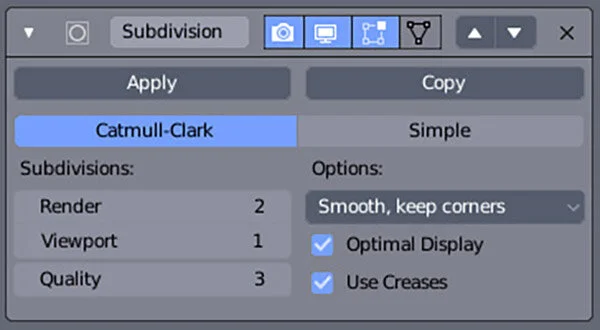
Catmull-Clark is the default subdivision type, using a common algorithm for subdivision of 3D assets. This setting subdivides and smooths the mesh. Simple subdivides the mesh without smoothing it.
The number of subdivisions in the viewport and the final render. Higher values use large amounts of computer memory and may crash Blender. Keep the render value equal to or higher than the viewport value.
The quality value indicates how precisely the vertices are positioned, mostly noticeable on extra-ordinary vertices (meeting of triangles etc.). Subdivision values are calculated faster with lower quality values. Maximum quality values are not necessary to achieve ideal results.
Checking use creases allows users to edit the crease weight of edges to alter how sharp the edges will be when subdivided. Checking optimal display hides the new geometry when in wireframe view. Smooth, keep corners smooths the UV islands while leaving boundaries sharp. Sharp leaves UVs unchanged.
Structure
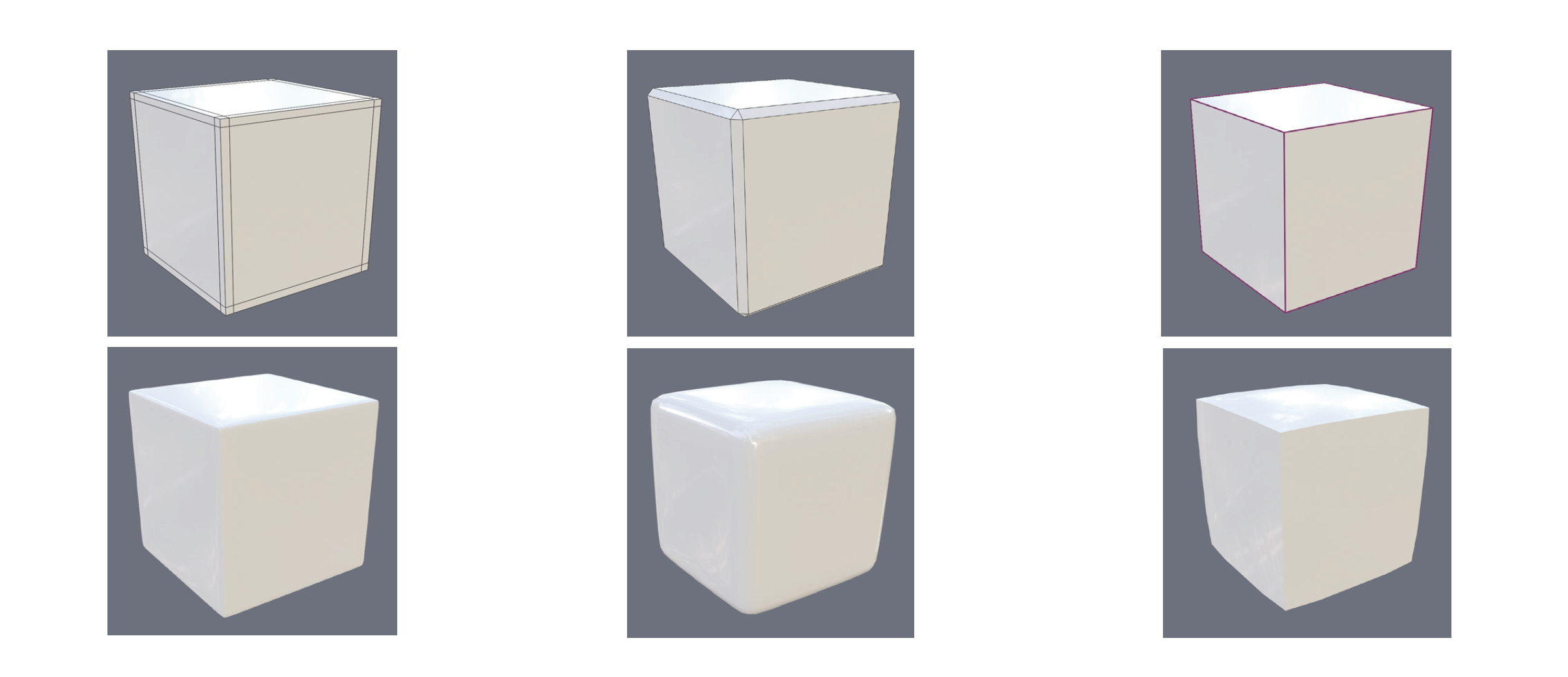
The construction of meshes must be considered when using the subdivision surface modifier in order to maintain the structure of the object. This can be achieved through multiple techniques:
Loop cuts
Adding loop cuts [Ctrl + R] and dragging them close to the edges sharpens the edges. The closer the loops are to the edges the sharper the edges will be.
Bevels
Adding bevels [Ctrl + B] to edges also sharpens them, with smaller bevels resulting in sharper edges.
Crease weight
Adding bevels [Shift + E] to edges also sharpens them, with smaller bevels resulting in sharper edges.
Additional notes
Subdivision works best on meshes made predominantly from quads. Meshes with triangles and n-gons are harder to subdivide and tend to cause shading problems.
Ensure that normals are facing the correct way after using the modifier as new faces are assigned the normals of the original faces which are not always ideal. Errors in normals can cause shading issues, but are usually easily fixed with the recalculate normals function [Ctrl + N] or by manually flipping the normals.
Avoid modeling with the modifier constantly active as this can result in messy and often unworkable meshes that do not closely resemble the subdivided version. This is a particular problem in animation contexts where the asset needs to be rigged. Instead ensure to swap back to the un-subdivided version regularly or work without the subdivision modifier visible to create clean meshes that closely resemble the desired subdivided version.
Emily Boehmer
BMW Group + QUT Design Academy Intern 2020